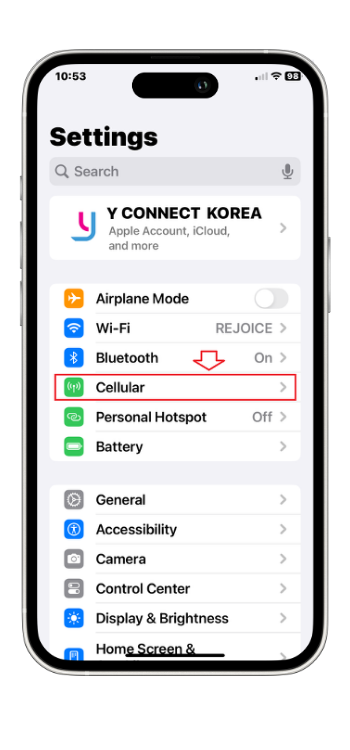
1. Settings > Cellular
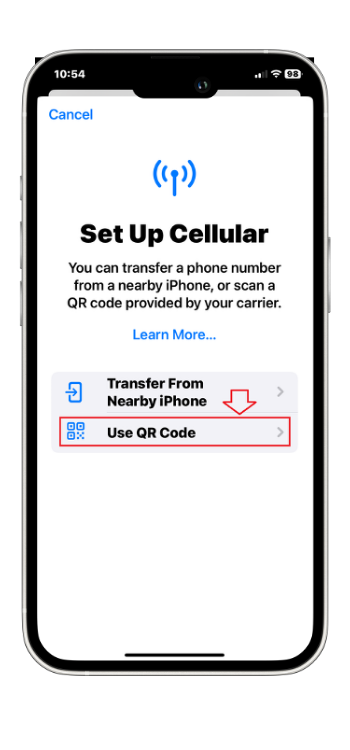
2. Add eSIM

3. Use QR Code
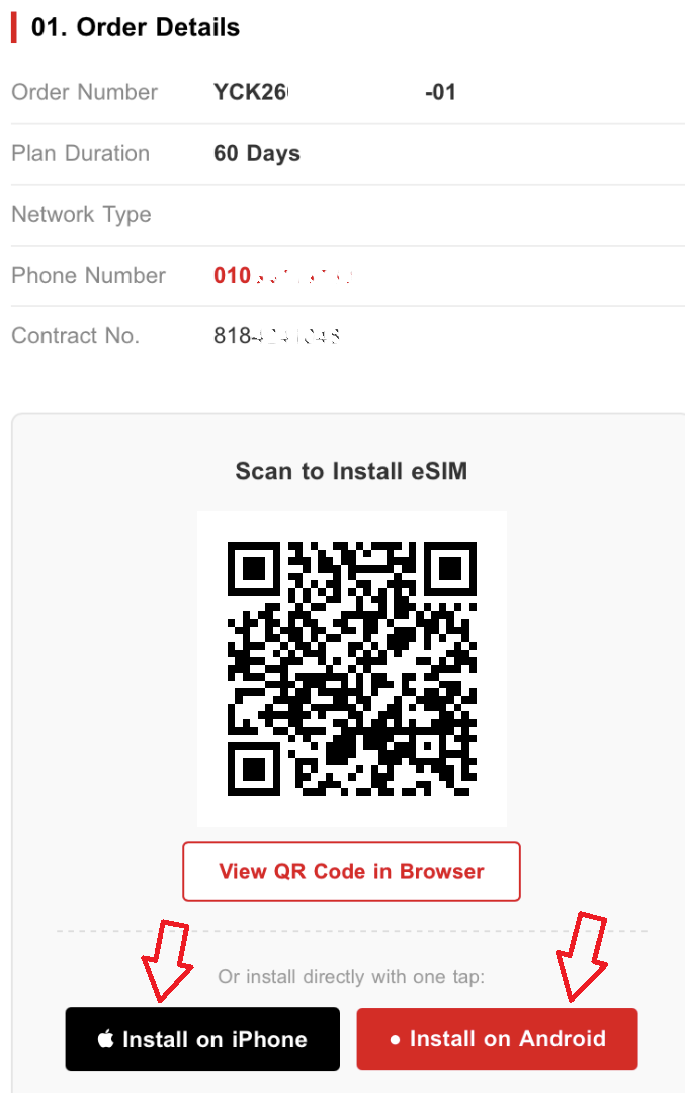
4. Scan QR Code
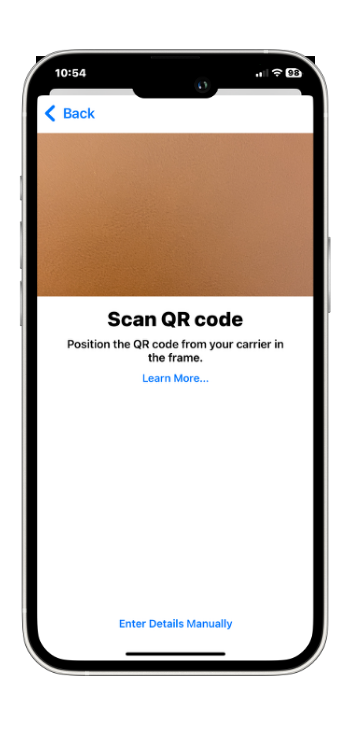
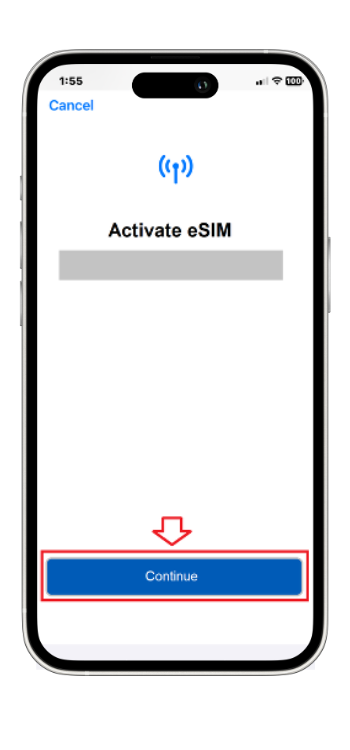
5. Activate eSIM
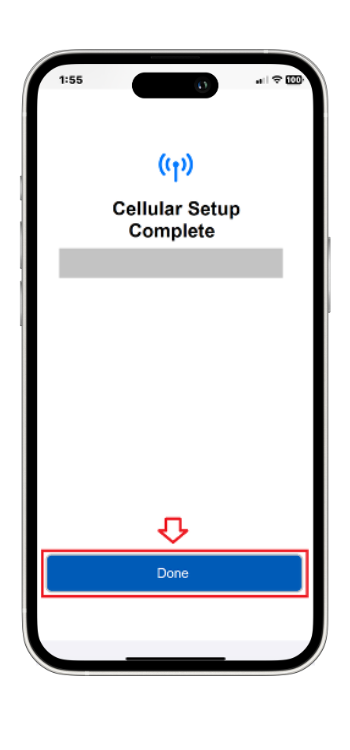
6. Cellular Setup Complete
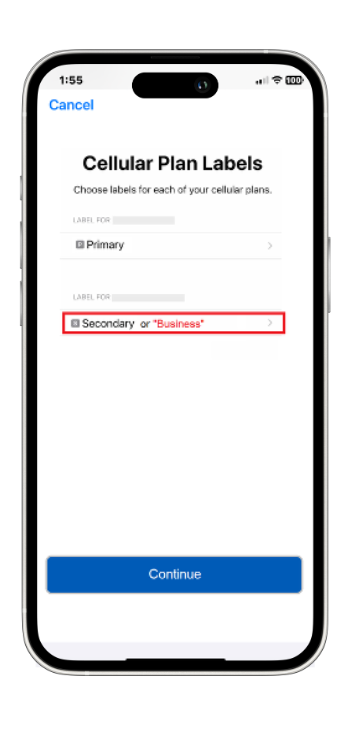
7. Cellular Plan Labels
*Label of the eSIM: Korea
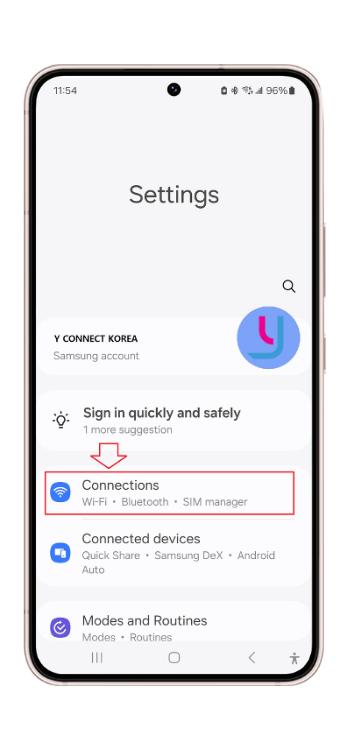
1. Settings > Connections
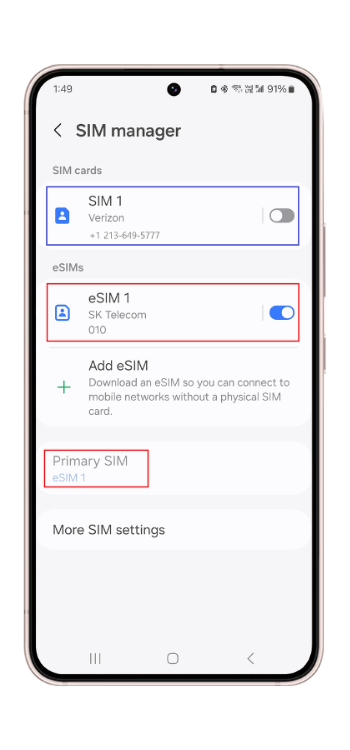
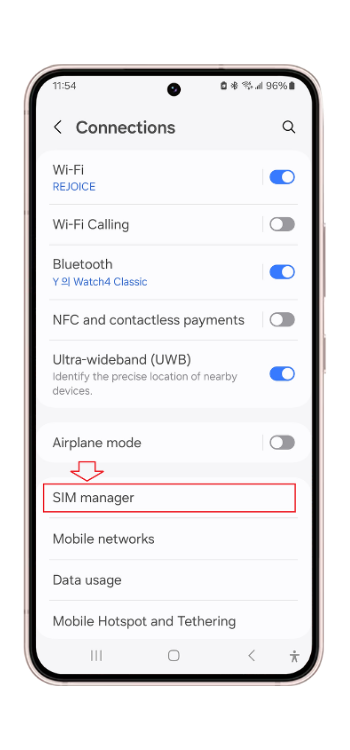
2. SIM manager
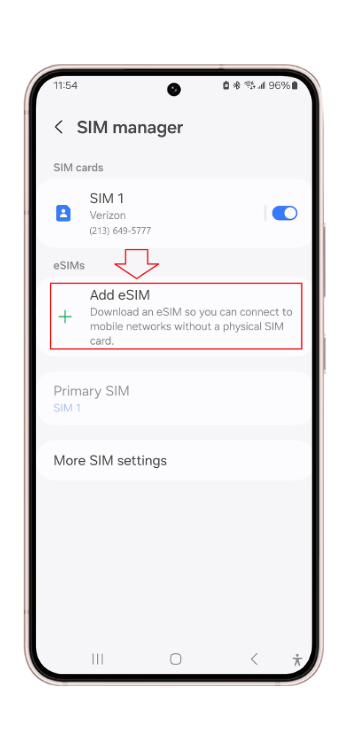
3. Add eSIM
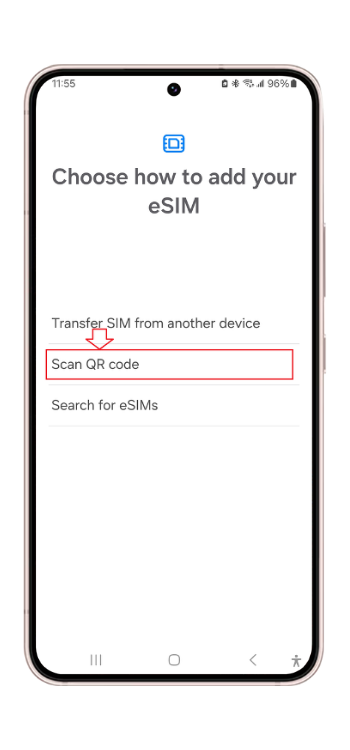
4. Select Scan QR Code
5. Scan QR Code
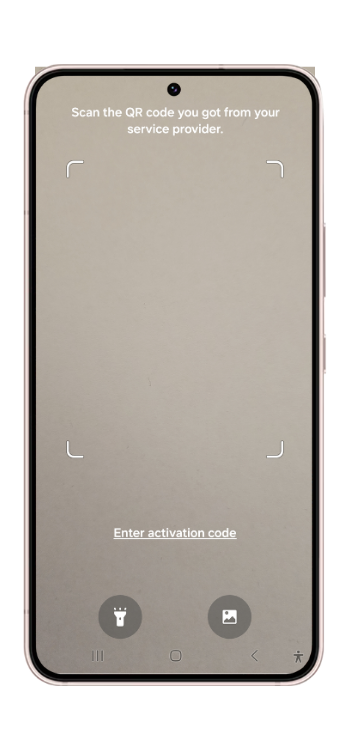
6. eSIM 1 installed
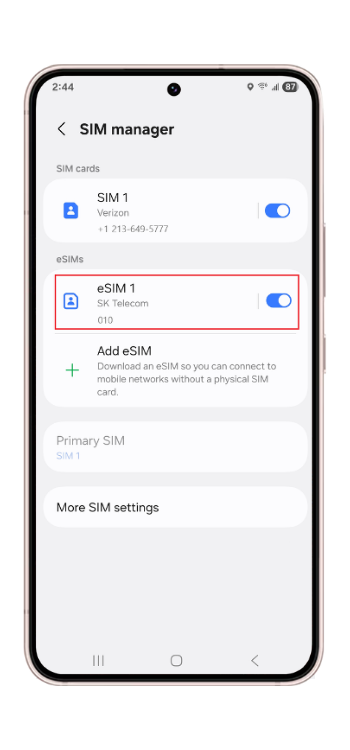
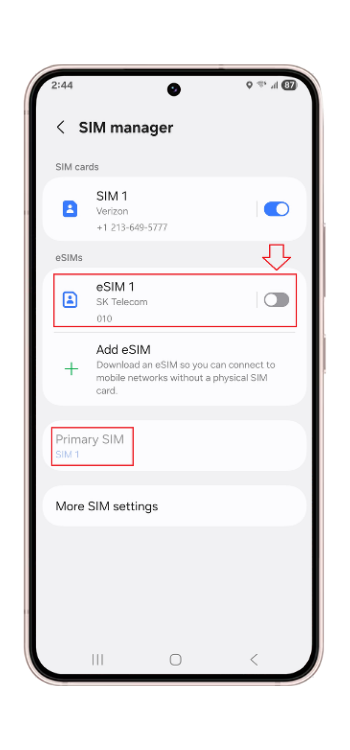
7. eSIM 1: Off
Primary SIM: SIM 1(USA Phone)
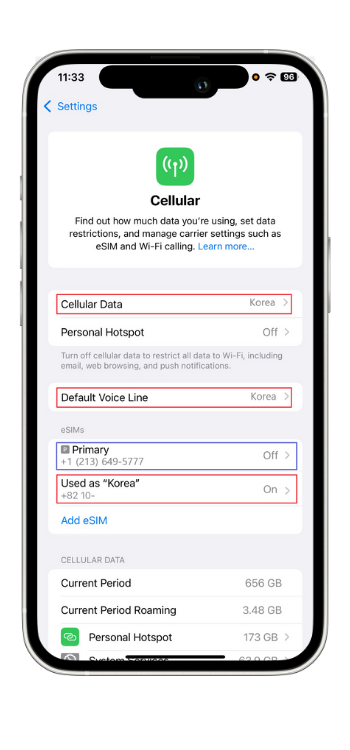
iPhone eSIM setup for use in Korea
✓ Go to Settings → Cellular
1. Turn On the eSIM for Korea (listed as Secondary or Korea)
* If you do not want roaming service:
2. Turn Off your main line (Primary)
After setup, please restart your phone 3 to 4 times
Set these options to your Korea eSIM:
Default Voice Line: Secondary or Korea ✓
Cellular Data: Secondary or Korea ✓
iMessage & Facetime: Secondary 또는 Korea ✓
* If you do not want roaming service:
Go to ‘Cellular Data’ and turn Off ‘Allow Cellular Data Switching’
Android Phone eSIM setup for use in Korea
✔ Go to Settings → Connections → SIM Manager
1. Turn On the eSIM 1 to be used in Korea
2. Set Primary SIM to eSIM 1 (Korea line)
* If you do not want roaming service:
3. Turn Off SIM 1 (main SIM)
After setup, please restart your phone 3 to 4 times
* If you do not want roaming service:
Go to ‘Mobile Networks’ and turn Off ‘Data Roaming Access’